



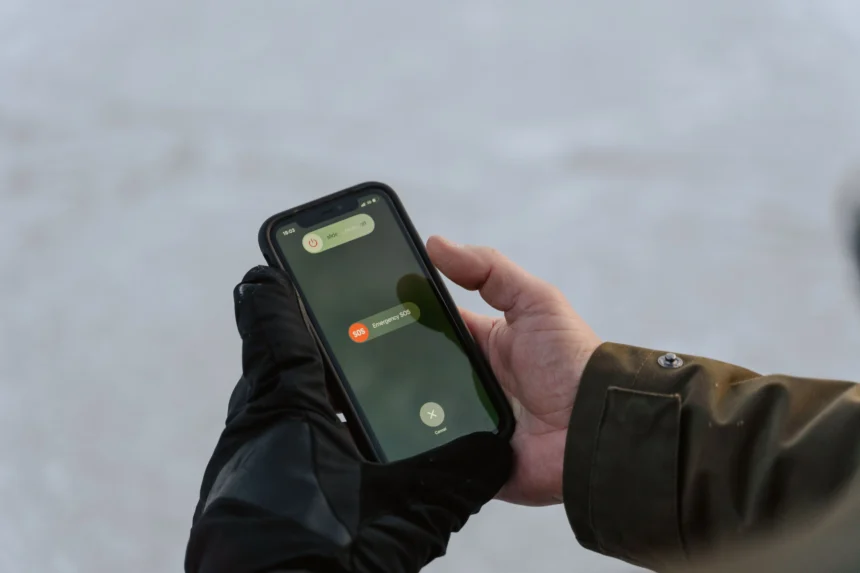
Why Your Phone Says SOS: What It Means When Your Signal Disappears
You pick up your phone to make a call, send a message or check something online. Everything appears normal until you notice that the familiar cellular signal bars have disappeared. In their place, your iPhone displays three unexpected letters: SOS.
For many people, the immediate reaction is confusion. Why does a phone that was working perfectly a few minutes ago suddenly show an emergency indicator? Is the mobile network down? Has the SIM card stopped working? Does SOS mean the phone has contacted emergency services?
The explanation is usually much less alarming than it first appears.
When your phone says SOS, it generally means your device cannot connect to its normal cellular network, but it may still be able to contact emergency services through another available network.
On an iPhone, this condition commonly appears as “SOS” or “SOS Only.” Android phones, including Samsung Galaxy devices, often display a similar message: “Emergency calls only.”
The distinction matters because losing normal cellular service does not always mean your phone has completely lost its ability to communicate.
According to Apple’s official cellular service guidance, the SOS indicator shows that your iPhone is not connected to your own cellular provider’s network but can potentially place emergency calls using another carrier’s network. Apple documents this specific SOS status feature for the United States, Canada and Australia.
However, that emergency connection is not guaranteed in every location.
Understanding what happens when your phone loses its signal can help you identify whether the problem involves weak coverage, a carrier outage, your SIM card, network settings or something more serious.
More importantly, knowing the difference between SOS, No Service and Emergency SOS can help you make better decisions when communication becomes essential.
What Does SOS Mean on Your Phone?
SOS is an internationally recognized distress signal. In modern smartphones, the term is associated with emergency communication capabilities.
When an iPhone displays SOS in its status bar, it is communicating a specific network condition rather than announcing that an emergency has already occurred.
Your phone normally registers with the mobile carrier associated with your SIM card or eSIM.
For example, someone using a particular cellular provider expects their phone to connect to that provider’s network when compatible coverage is available.
If the phone loses access to that network, it may search for other available cellular connections.
Under supported conditions, it can detect a nearby network belonging to another provider that permits emergency calling, even though that network does not allow the phone to use ordinary subscriber services.
The phone then displays SOS or SOS Only.
In practical terms, this may mean:
- You cannot place ordinary cellular calls through your usual carrier.
- You may not receive regular cellular calls or text messages.
- Mobile data may stop working.
- Emergency calling may remain possible through another network.
- Wi-Fi connections and internet-based apps may continue working independently.
An important point is that seeing SOS does not mean your phone has automatically called the police, an ambulance or another emergency service.
It is a status indicator showing limited cellular connectivity.
What Is the Difference Between SOS and SOS Only?
On an iPhone, SOS and SOS Only generally describe the same underlying situation.
Both indicate that full service from your mobile provider is unavailable while certain emergency calling capabilities may remain accessible.
The wording and appearance can vary with the device, iOS version, country and status-bar layout.
There is no meaningful difference in the basic troubleshooting approach simply because one phone displays SOS and another shows SOS Only. When your phone says SOS, it is giving you information about a connection problem.
The first objective is to determine why the device cannot register normally with its carrier.
SOS vs No Service vs Emergency Calls Only
Although these messages appear when mobile connectivity is disrupted, they do not describe exactly the same situation on every phone.
| Phone status | What it generally means | Normal calls and mobile data |
|---|---|---|
| SOS | Your carrier’s normal service is unavailable, but emergency calling may work through another network | Usually unavailable |
| SOS Only | Similar to SOS; limited emergency-only cellular connectivity | Usually unavailable |
| No Service | The phone is not connected to a cellular network | Unavailable until service is restored |
| Searching | The device is attempting to locate or register with a cellular network | May be temporarily unavailable |
| Emergency calls only | Android cannot use normal carrier service, but emergency calling may be possible | Usually unavailable |
| Normal signal bars | The phone has registered with a mobile network | Generally available, subject to account and network conditions |
A phone displaying No Service is not necessarily incapable of making an emergency call. Emergency calling behavior depends on the device, available networks, local rules and network compatibility.
Similarly, SOS is not a promise that an emergency call will succeed.
The message provides information about the phone’s cellular registration state, not a guarantee of coverage or rescue.
Why Does Your Phone Say SOS When the Signal Disappears?
Mobile phones depend on communication with nearby cellular infrastructure.
Every time you make a traditional phone call, send an ordinary text message or use mobile data, your phone exchanges radio signals with equipment operated by a mobile network.
That equipment is commonly associated with cellular towers, although antennas may also be installed on rooftops, buildings and smaller communications sites.
A successful mobile connection requires several conditions to work together.
Your device must support the relevant network technology and frequencies. It must receive an adequate signal. Your SIM or eSIM must provide appropriate subscriber credentials, and the network must allow the device to register.
If any important part of that process fails, your phone may lose ordinary service.
Your Phone Can Detect a Network Without Being Allowed to Use It
This is one of the most important details behind the SOS indicator.
Imagine you subscribe to Carrier A.
You enter an area where Carrier A has no usable signal, but Carrier B operates a nearby cellular site.
Your phone may detect Carrier B’s network without having permission to use it for normal calls, messages or mobile data.
However, depending on the country and network capabilities, emergency calls may be permitted.
That is how a phone can report that ordinary cellular service is unavailable while still offering an emergency calling option.
It is also why emergency-only service should not be confused with ordinary roaming.
Roaming generally involves an arrangement that allows a subscriber to use another provider’s network for authorized services.
Emergency access operates under different conditions.
9 Common Reasons Your Phone Says SOS
There is no single explanation for every phone that suddenly displays SOS.
Sometimes the cause is as simple as entering an underground parking garage. In other cases, the problem may involve the mobile carrier, account settings or a damaged component.
The following nine causes explain most ordinary troubleshooting scenarios.
1. Weak or Missing Cellular Coverage
Poor coverage is one of the most common reasons a phone says SOS.
Mobile radio signals become weaker as they travel farther from an antenna. Their quality can also be affected by buildings, terrain, interference and the materials surrounding the device.
You may experience service problems in:
- Underground parking areas and basements.
- Elevators and large concrete buildings.
- Remote roads and rural communities.
- Mountain valleys and isolated travel destinations.
- Buildings with metal structures or specialized window coatings.
- Crowded locations where nearby network capacity is heavily used.
For example, your phone might work normally outside an office building but display SOS after you enter an underground meeting room.
Nothing may be wrong with the phone itself.
Its carrier’s radio signal may simply be too weak to maintain a usable connection.
Google explains in its 5G compatibility guidance that cellular performance depends on location, the network, device compatibility and signal obstructions.
What helps: Move toward an open area, approach a window or test the phone outside the building.
If normal signal bars return immediately, the problem is likely related to coverage at that location.
2. Your Mobile Carrier Is Experiencing an Outage
Sometimes your phone loses service because the network itself is having trouble.
Cellular networks depend on physical equipment, electrical power, software, transmission links and systems that authenticate subscribers.
A failure in any important component can affect connectivity.
Potential causes include damaged fiber connections, power problems at cellular sites, equipment faults, software configuration errors and scheduled maintenance.
Some outages affect only one neighborhood.
Others can disrupt service across an entire city, region or larger network.
During an outage, phones may repeatedly search for a connection, show No Service or enter an SOS-only state.
If several people using the same carrier suddenly lose service at the same time, the problem is more likely to involve the provider than a single phone.
However, not every widespread service failure has the same technical cause.
Our guide to cloud outages explained examines how failures involving physical infrastructure, networking and software can disrupt digital services.
What helps: Check your provider’s official service status through Wi-Fi, contact customer support or compare service with another person using the same carrier.
Restarting your device cannot repair a failed cellular site.
3. Your Physical SIM Card Is Damaged or Not Recognized
Your SIM card allows the mobile network to identify and authenticate your subscription.
If the phone cannot read the SIM correctly, it may be unable to register for normal service.
A physical SIM can develop problems because of damage, improper positioning or issues involving the SIM tray or reader.
A sudden loss of service after dropping a phone, changing its SIM card or repairing its hardware may justify checking the SIM.
On some devices, an invalid or undetected SIM can result in an Emergency calls only message rather than ordinary network access.
Samsung’s SIM card troubleshooting guidance identifies damaged SIM cards, software problems and carrier settings as possible reasons a Galaxy device cannot connect normally.
What helps: Check whether the SIM is recognized. If your phone uses a removable SIM, power it off and inspect or reseat the card according to the manufacturer’s instructions.
If the card continues failing, contact your carrier about a replacement.
4. Your eSIM Is Disabled or Has an Activation Problem
Modern smartphones increasingly support eSIM technology.
Unlike a removable SIM card, an eSIM is a digital subscriber profile stored on compatible hardware inside the phone.
It performs the essential subscriber identification role without requiring the user to insert a physical card.
However, an eSIM still needs to be correctly installed, activated and enabled.
A phone may show SOS if its cellular line has been switched off, the eSIM was not properly activated or the carrier has not completed provisioning. When your phone says SOS, it is giving you information about a connection problem.
Problems can also occur when transferring a mobile number between devices.
On an iPhone, you can review installed lines under Settings > Cellular.
On many Android phones, the corresponding options appear under Network & Internet > SIMs or a similar menu.
What helps: Confirm that the intended mobile line is enabled and contact the carrier if the eSIM is missing or not activated.
Avoid deleting an eSIM simply because the phone shows SOS. Removing the profile can create an additional activation problem if you do not have the information needed to reinstall it.
5. Your Carrier Account Has an Activation or Service Problem
A mobile subscription can become unusable even when the phone and nearby cellular towers are functioning correctly.
For example, an account may have an activation issue, a billing-related restriction or a carrier-side configuration problem.
A recently transferred number may also require additional provisioning before it operates normally.
In some markets, device registration or equipment restrictions can affect whether an imported phone is permitted to use local mobile networks.
Apple specifically advises checking with the carrier to confirm that an account is active, the phone is not blocked or barred and the subscription is correctly configured.
This matters because a subscriber may interpret SOS as a weak signal when the actual problem involves network authorization.
What helps: Ask your carrier to verify the status of your mobile number, subscription, SIM or eSIM activation and device eligibility.
6. A Temporary Software or Network Registration Problem
Smartphones continuously manage complicated connections as they move between coverage areas and different cellular technologies.
Occasionally, the software responsible for maintaining those connections can encounter a temporary problem.
For example, a phone might lose service inside an elevator and fail to reconnect promptly after returning to an area with adequate coverage.
In other situations, a software update, carrier configuration change or network selection setting can contribute to registration difficulties.
These problems do not always indicate permanent damage.
Restarting a phone or briefly toggling Airplane Mode can force it to attempt a fresh connection.
That is why manufacturers commonly recommend these steps before more disruptive troubleshooting.
What helps: Restart the phone, use Airplane Mode to refresh the connection and check for software or carrier settings updates. When your phone says SOS, it is giving you information about a connection problem.
If the problem happens repeatedly, investigate further rather than continually relying on temporary fixes.
7. International Roaming Is Not Working
Travel creates another common situation in which a phone says SOS.
Your normal carrier may not operate its own cellular network in another country.
Instead, international mobile service may depend on roaming arrangements with local providers.
If roaming is unavailable, the subscription is not authorized for the destination network or the phone cannot connect to a compatible partner, ordinary cellular service may disappear.
A traveler could therefore see strong local cellular infrastructure nearby while remaining unable to use their own subscription. When your phone says SOS, it is giving you information about a connection problem.
Before assuming the phone is defective, check whether the mobile plan includes roaming in the destination country.
Also review the phone’s roaming settings.
What helps: Confirm international roaming is enabled on the account and device, check supported partner networks and verify potential charges before enabling data roaming.
Travelers should also prepare offline maps and important contact information. The News Ink’s smart travel guide explains how planning for connectivity problems can reduce difficulties while traveling.
8. Your Phone and the Available Network Are Not Fully Compatible
Cellular networks have changed significantly over time.
Older generations of mobile technology have been replaced or retired in many markets, while modern devices increasingly rely on LTE, 5G and supported voice technologies.
A phone may struggle to connect if it does not support the frequencies or features required by the carrier.
This can affect imported models, older devices and phones purchased for use in a different region.
Network preferences can also contribute to problems if a device is configured to use a network type that is unavailable.
Normally, compatible smartphones switch between supported network generations automatically.
But that behavior depends on the phone, carrier configuration and available network technologies.
Google’s mobile connectivity support recommends checking preferred network types, signal strength, SIM settings and device compatibility when investigating connection failures.
What helps: Use automatic network selection where appropriate and confirm that your specific phone model supports the carrier’s required bands and voice services. When your phone says SOS, it is giving you information about a connection problem.
9. Your Phone Has a Hardware Problem
If every other explanation has been ruled out, the issue may involve physical hardware.
Smartphones contain antennas, radio-frequency components, connectors and a cellular modem that work together to communicate with mobile networks.
Damage from impact, liquid exposure or internal component failure can interfere with connectivity.
Possible warning signs include:
- SOS appearing across multiple locations with known coverage.
- Several working SIM cards failing in the same phone.
- A sudden loss of service after physical damage.
- Repeated cellular errors despite confirmed carrier service.
- The phone failing to recognize supported network hardware.
However, these symptoms do not prove that the modem or antenna is defective.
Account restrictions and software problems can look similar.
What helps: Have the carrier verify the subscription and network first. If service works on another compatible device but repeatedly fails on yours, seek professional diagnosis from an authorized repair provider.
How to Fix a Phone That Says SOS
Once you understand the possible causes, troubleshooting becomes easier.
The most effective approach is to start with simple, reversible steps and move toward more advanced options only when necessary. When your phone says SOS, it is giving you information about a connection problem.
These steps apply broadly to iPhone and Android devices, although menu names vary.
Step 1: Turn Airplane Mode On and Off
Airplane Mode temporarily disables normal cellular radio connections.
Switching it on and off allows the phone to attempt network registration again.
For iPhone users, Apple recommends:
- Open Settings.
- Enable Airplane Mode.
- Leave it enabled for at least 15 seconds.
- Turn Airplane Mode off.
- Allow the phone to search for service again.
Android users can generally perform a similar action through Quick Settings or the network settings menu.
If the loss of service was caused by a temporary registration issue, normal signal bars may return.
This will not solve a genuine coverage gap, suspended account or major carrier outage.
Step 2: Restart Your Phone
Restarting clears certain temporary software states and allows the operating system to initialize its network components again.
It is a reasonable next step when toggling Airplane Mode does not restore service.
After restarting, allow the phone to reconnect before making additional changes.
If SOS immediately returns, investigate coverage, carrier service and SIM status.
Step 3: Move to a Different Location
A location test is one of the most useful diagnostic steps.
Move outside, away from underground structures or into an area where you normally receive good service.
Check whether signal bars return.
If the phone reconnects in one location but repeatedly shows SOS in another, weak coverage is a likely explanation.
If service remains unavailable everywhere, continue investigating.
Step 4: Check Your SIM or eSIM
On an iPhone, open Settings > Cellular and confirm that your expected mobile line appears and is turned on.
On a Google Pixel, open Settings > Network & Internet > SIMs and review the active subscription.
Samsung Galaxy users can check SIM settings through the Connections menu, with exact options depending on the model and software version.
If you use a physical SIM, inspect it only when the phone supports safe removal.
If you use an eSIM, contact your carrier before attempting to remove or reinstall it.
The objective is to establish whether the phone recognizes an active subscription.
Step 5: Check for a Carrier Outage
If your phone says SOS for an extended period, find out whether other subscribers are experiencing the same issue.
Use an existing Wi-Fi connection to check the carrier’s official website, service app or outage announcements.
You can also contact support through another available connection.
Ask whether there is a reported outage affecting your area.
This simple check can prevent unnecessary network resets and device repairs.
Step 6: Install Available Software and Carrier Updates
Phone manufacturers and network providers periodically release updates that address compatibility problems, improve network behavior or change cellular settings.
On an iPhone, you can check for iOS updates under Settings > General > Software Update.
To check for carrier settings updates, connect to Wi-Fi and open Settings > General > About. If a carrier settings update is available, the phone may offer an installation prompt.
Android update locations vary, but are generally accessible through Settings > System or Software Update.
Use an adequately charged device and a reliable connection.
Step 7: Reset Network Settings if Other Fixes Fail
A network settings reset can help when incorrect or corrupted connection settings prevent normal registration.
On iPhone, Apple documents this path:
Settings > General > Transfer or Reset iPhone > Reset > Reset Network Settings.
This removes saved network-related settings, including Wi-Fi passwords and certain VPN or access-point configurations.
It does not perform a complete factory reset.
On Android, look for network reset options under System or General Management, depending on the manufacturer.
Be careful to distinguish resetting network settings from deleting downloaded eSIM profiles or erasing the entire phone.
Apple’s calling troubleshooting guidance explains the impact of network resets and recommends checking for carrier issues as part of the diagnosis.
Step 8: Contact Your Mobile Carrier
If the earlier steps fail, the provider should verify whether your number and device are properly authorized on its network.
Ask the carrier to check:
- Account and subscription status.
- SIM or eSIM activation.
- Local coverage and reported outages.
- Device compatibility and restrictions.
- Carrier-side registration or provisioning issues.
This is particularly important if the problem began after changing devices, transferring a number or switching to an eSIM.
Step 9: Arrange Hardware Diagnosis if Necessary
Hardware repair should generally come after reasonable network and account checks.
If the carrier confirms that service is operating properly and a known-working SIM also fails in your device, a repair assessment may be appropriate. When your phone says SOS, it is giving you information about a connection problem.
The technician may inspect the device’s radio hardware or other relevant components.
Avoid replacing an expensive phone solely because SOS appeared once.
An isolated loss of signal is not evidence of permanent damage.
What to Do First: A Quick Troubleshooting Table
| What you notice | Likely explanation | Best first action |
|---|---|---|
| SOS appears in a basement | Weak indoor signal | Move outside or near a window |
| Several phones on one carrier lose service | Possible carrier outage | Check official carrier status |
| SOS appears after changing phones | SIM or eSIM activation issue | Contact the carrier |
| Signal disappears after traveling abroad | Roaming or compatibility problem | Check roaming and partner networks |
| SOS appears briefly and disappears | Temporary connection loss | Monitor and use Airplane Mode if needed |
| Phone does not recognize a SIM | SIM or reader problem | Check SIM status and contact carrier |
| Service fails after a software change | Configuration or registration issue | Check updates and network settings |
| Phone has SOS everywhere after physical damage | Possible hardware fault | Arrange professional diagnosis |
These clues are not definitive diagnoses.
They help narrow the possibilities before making unnecessary changes.
Can You Still Make Emergency Calls When Your Phone Says SOS?
In many circumstances, yes.
Emergency calling is treated differently from ordinary subscriber communications.
If your own carrier is unavailable but a compatible nearby network permits emergency access, your phone may still be able to place an emergency call.
For example, a person in the United States may be able to dial 911 even when their phone cannot connect to its regular network.
However, several conditions can affect whether the call succeeds.
There must be a usable network signal, compatible equipment and an available emergency calling route.
Local laws, carrier implementations and network technologies also matter.
A phone cannot necessarily reach emergency services merely because SOS is visible.
What Happens if There Is No Cellular Signal From Any Network?
This is a particularly important limitation.
If no compatible terrestrial cellular network can be reached, the phone may not be able to complete a conventional emergency call.
The presence of SOS is not a substitute for an actual radio connection.
Some supported smartphones offer alternative emergency communication technologies, including satellite-based services, but those features have their own availability requirements.
The U.S. government’s 911 calling guidance also explains that mobile devices without an active service plan can have important emergency-calling limitations, including difficulties with location information and callbacks.
In a real emergency, attempt the locally recognized emergency number through the phone’s emergency calling interface. If the call cannot connect, seek another available communication method or move toward safer, better-covered surroundings when practical. When your phone says SOS, it is giving you information about a connection problem.
Does SOS Mean Your Phone Has Called 911?
No.
A phone displaying SOS has not necessarily dialed any emergency number.
The status indicator must be distinguished from a separate smartphone feature commonly called Emergency SOS.
Emergency SOS is designed to help users contact emergency services quickly through a particular button combination, on-screen control or another supported method.
On supported iPhones, for example, Emergency SOS can be activated using designated hardware-button actions.
The phone may start a countdown before attempting to contact emergency services.
Other supported functions can notify emergency contacts after an emergency call.
These actions are different from simply seeing SOS in the status bar.
The key distinction is straightforward:
SOS in the status bar describes a network condition. Emergency SOS is an emergency communication feature that must be activated or otherwise triggered.
Apple explains the separate calling procedures in its Emergency SOS user guide.
Why Does My Android Phone Say Emergency Calls Only?
Android smartphones commonly use the message Emergency calls only instead of the iPhone’s SOS indicator.
The underlying situation is similar.
The phone cannot use its normal cellular subscription, but it may still have access to limited emergency calling.
Samsung’s official troubleshooting guide identifies weak signal, unavailable carrier service, SIM problems and inactive eSIMs as possible explanations.
The precise message varies across Android brands and software versions.
For example, a Samsung Galaxy phone may present the message differently from a Google Pixel.
Some Android devices also display a separate emergency call button on the lock screen.
That button is an access point for making emergency calls; it does not mean a call has already been placed.
Users should follow their manufacturer’s specific instructions when checking SIM status or resetting connectivity settings. When your phone says SOS, it is giving you information about a connection problem.
Can You Use Wi-Fi When Your Phone Says SOS?
Yes, in many cases.
Wi-Fi and cellular service use different connection technologies.
Your mobile carrier may be unavailable while your phone remains connected to a working home, office or public Wi-Fi network.
If the Wi-Fi connection provides internet access, you may still be able to use internet-based services such as messaging apps, email, websites and video calls.
For example, WhatsApp or another internet messaging service may continue working over Wi-Fi even when ordinary cellular calls cannot be completed.
However, some apps or account functions may require cellular verification, and their availability depends on having a functioning internet connection. When your phone says SOS, it is giving you information about a connection problem.
Can Wi-Fi Calling Work During an SOS Outage?
Wi-Fi Calling is a separate feature that allows compatible phones and carrier subscriptions to handle certain traditional calls through Wi-Fi.
If your carrier supports Wi-Fi Calling and it is correctly configured, you may be able to make or receive normal calls even when cellular reception is weak or absent.
Apple’s Wi-Fi Calling instructions explain how supported iPhones can use a Wi-Fi connection for voice calls.
Emergency calls over Wi-Fi may also be supported, but location reporting and routing can differ from ordinary cellular emergency calling.
Do not assume every Wi-Fi network, mobile plan or country supports identical emergency calling features.
If you depend on Wi-Fi Calling, configure it before an emergency and understand your carrier’s limitations.
When using unfamiliar hotspots, sensible security precautions remain important. Our public Wi-Fi safety guide explains how to identify suspicious networks and protect personal accounts while traveling.
Is SOS on an iPhone the Same as Emergency SOS via Satellite?
No. These are related emergency concepts, but they involve different communication methods.
Ordinary SOS or SOS Only generally indicates that conventional emergency calling through another cellular network may remain available.
Emergency SOS via satellite is designed for certain situations where compatible cellular and Wi-Fi connectivity cannot be used.
On supported iPhone models, the satellite feature can help a person communicate with emergency services through a satellite connection when the service is available in that location.
This can be especially relevant in remote areas without terrestrial mobile coverage.
However, satellite communication is not universally available on every smartphone or in every country.
Apple lists Emergency SOS via satellite availability for supported iPhone 14 and later models in selected countries and regions.
The service requires compatible hardware, software, regional support and suitable conditions for connecting to a satellite. When your phone says SOS, it is giving you information about a connection problem.
It is not guaranteed merely because a phone displays SOS.
Apple maintains the relevant requirements and supported locations on its Emergency SOS via satellite page.
Does Your Phone Normally Use Satellites for Mobile Calls?
Usually not.
Conventional mobile calls and data connections rely primarily on terrestrial cellular networks.
Although satellite systems can support parts of telecommunications infrastructure, that does not mean ordinary smartphone calls are automatically transmitted directly to satellites.
Satellite-enabled emergency communication is a distinct technical capability.
Our explainer on what happens if satellites stop working examines the wider relationship between satellites, communications infrastructure, navigation and timing systems.
Does SOS Mean Your Phone Has Been Hacked?
Usually not.
An SOS indicator by itself is not evidence of hacking, surveillance, malware or unauthorized access.
Most ordinary cases can be explained by coverage problems, account issues, SIM failures or network interruptions.
However, an unexpected loss of cellular service can occasionally be associated with a security problem involving the subscriber’s phone number.
One example is SIM swapping.
When a Sudden Loss of Service May Indicate SIM Swapping
A SIM-swap attack occurs when a criminal fraudulently transfers a person’s mobile number to another SIM or device.
If the transfer succeeds, the legitimate user’s phone may lose its normal service.
The attacker may then receive calls or text messages intended for the victim, potentially including certain account verification codes. When your phone says SOS, it is giving you information about a connection problem.
The U.S. Federal Trade Commission warns about this risk in its SIM-swap scam guidance.
Nevertheless, most phone signal losses are not SIM-swap attacks.
Concern becomes more justified if your service unexpectedly disappears alongside suspicious account notifications, an unrequested SIM activation or evidence of account access you did not authorize.
In that situation, contact your carrier through a trusted channel and secure important accounts promptly.
For a broader explanation of identity protection and digital threats, see The News Ink’s Cybersecurity Explained guide.
Why Does Your Phone Keep Switching Between SOS and Normal Signal?
Intermittent SOS can be particularly frustrating because the device may work normally for several minutes before disconnecting again. When your phone says SOS, it is giving you information about a connection problem.
This pattern often indicates that the available cellular connection is unstable.
A phone near the edge of coverage may repeatedly lose and regain access to a network.
The problem can become more noticeable while traveling, entering buildings or moving between locations served by different cellular sites.
Temporary network congestion, software registration issues or a SIM problem can also produce repeated disconnections.
Consider when the switching happens.
If it occurs only in one location, coverage should be investigated first.
If it happens across several well-covered locations, the SIM, device configuration, carrier account or hardware becomes more relevant.
Frequent switching should not be treated as normal if it prevents reliable communication.
Documenting where and when it occurs can help your carrier diagnose the problem.
How Long Does SOS Only Usually Last?
There is no universal duration.
If the cause is a temporary signal interruption, normal service may return within seconds or minutes.
If the mobile carrier is experiencing an outage, connectivity may remain disrupted until the network problem is resolved. When your phone says SOS, it is giving you information about a connection problem.
A deactivated eSIM, suspended subscription or damaged SIM can leave a phone without normal service until a specific action is taken.
A hardware failure may require professional repair.
The duration therefore depends on the cause rather than on the SOS feature itself.
If your phone has shown SOS continuously in an area where it normally receives reliable coverage, use the troubleshooting steps rather than assuming the issue will resolve automatically.
Frequently Asked Questions About Phone SOS
Why does my phone say SOS but I have Wi-Fi?
Your phone’s cellular and Wi-Fi connections are separate. SOS indicates a problem with normal cellular service, while Wi-Fi may still provide internet access through a working wireless network.
Why did my iPhone suddenly go into SOS mode?
An iPhone may suddenly display SOS because of poor reception, a carrier outage, SIM or eSIM problems, account restrictions or temporary software issues. It does not necessarily mean a user enabled a special mode.
Can someone call me when my phone says SOS?
Ordinary cellular calls to your mobile number generally cannot reach you through a cellular connection that is unavailable. However, supported Wi-Fi Calling may still work, and internet-based calling apps can remain usable when Wi-Fi internet access is available.
Will SOS Only fix itself?
It can. A brief coverage interruption or temporary network problem may resolve automatically. Persistent SOS caused by an activation issue, account restriction or defective hardware may require action.
Does SOS mean my SIM card is blocked?
Not necessarily. A blocked or inactive subscription is one possible cause, but weak coverage and carrier outages are also common explanations. Only the carrier can confirm account-specific restrictions. When your phone says SOS, it is giving you information about a connection problem.
Does SOS mean my phone is being tracked?
No. The SOS status indicator does not demonstrate that someone is tracking the device. It describes limited cellular connectivity and should not be treated as evidence of surveillance.
Can I text someone while my phone says SOS?
Ordinary cellular text messaging may be unavailable. However, internet-based messaging services can continue working through Wi-Fi. Carrier-supported messaging over Wi-Fi or satellite messaging depends on the device, plan and regional availability. When your phone says SOS, it is giving you information about a connection problem.
Why does my phone say SOS after an iOS update?
The timing may be related to a software or carrier configuration issue, but it does not prove the update caused the problem. Check for further updates, restart the phone and confirm the cellular line is active. Contact the carrier if normal service does not return.
Is SOS Only the same as Airplane Mode?
No. Airplane Mode intentionally changes wireless radio behavior. SOS Only means the phone cannot use its normal cellular network but may retain limited emergency calling capabilities. Toggling Airplane Mode is one troubleshooting method, not the meaning of the SOS indicator.
Can I turn off SOS Only permanently?
There is generally no reason to disable the SOS indicator itself. It is reporting the phone’s connection status. Restoring normal cellular service should cause the warning to disappear. Disabling emergency-related features is not a substitute for fixing the underlying network problem.
The Bottom Line: What It Really Means When Your Phone Says SOS
Seeing SOS instead of normal signal bars can be unsettling, particularly when you are traveling, expecting an important call or trying to contact someone urgently.
However, the message has a practical explanation.
When your phone says SOS, the device generally cannot connect to its normal cellular network, although emergency calling through another available network may still be possible.
That does not mean your phone is damaged, hacked or automatically contacting emergency services.
In many situations, the cause is temporary. When your phone says SOS, it is giving you information about a connection problem.
Moving to an area with stronger coverage, toggling Airplane Mode, restarting the device or waiting for a carrier outage to end may restore service.
Other cases require checking the SIM, confirming eSIM activation, reviewing roaming settings or contacting the provider.
The most important distinction is between losing ordinary mobile service and losing every possible communication method.
A phone without cellular access may still have working Wi-Fi. Some devices support emergency services through alternative cellular networks, while certain newer smartphones offer satellite-based options in supported locations.
None of those technologies can guarantee connectivity in every circumstance.
Understanding their limitations is part of using them safely.
Ultimately, when your phone says SOS, it is giving you information about a connection problem—not necessarily warning you that something catastrophic has happened.
Recognizing that difference, and knowing the appropriate troubleshooting steps, can help you respond calmly and restore normal service when it matters.
For more research-driven explainers, technology coverage and global stories, follow The News Ink on X, Instagram, Threads, Medium, Substack, Bluesky, Pinterest, TikTok, Quora and Mastodon.