



Cloud Storage Explained: 8 Essential Facts About Keeping Files Online
Saving files online has become part of everyday life. Students may store assignments online, families may back up photographs and businesses may keep documents available to staff in different locations. Behind these familiar habits is online storage: a way to keep digital information on remote servers rather than relying only on the hard drive inside one device.
This approach can make files easier to access, share and protect. However, convenience can create confusion. Storing a file online is not always the same as creating a complete backup. A shared folder can expose more information than intended when permissions are too broad. A cheap storage plan may become expensive when a business ignores data-transfer charges or keeps unnecessary files forever.
This article explains eight essential facts, including storage types, sync, backup, encryption, sharing and recovery. For a broader introduction to online infrastructure, read The News Ink’s cloud computing guide.
What Is Cloud Storage?
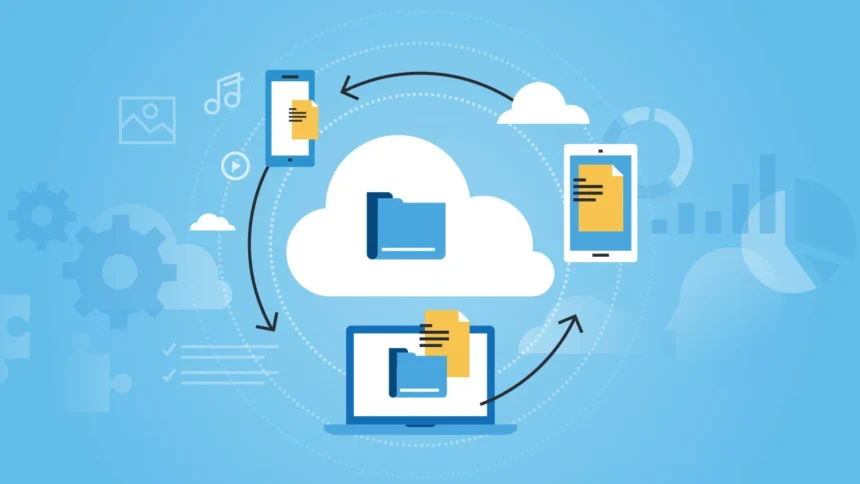
Cloud storage is a method of keeping digital data on servers in off-site locations. A well-planned cloud storage setup can support everyday access and longer-term recovery. Those servers are operated and maintained by a provider, while users or applications reach the files through an internet connection or a private network. Google Cloud’s overview explains that the provider hosts, manages and secures the infrastructure used to store the data.
For ordinary users, cloud storage may look like a folder on a phone or laptop. For businesses, it may involve larger systems for photographs, backups, application files, media libraries or archives.
A personal file-sharing app and a large business storage service are not identical, even though both rely on remote infrastructure. The right choice depends on the amount of data, how often it is used, who needs access and how important recovery is after a mistake or failure.
Cloud Storage Fact 1: Your Files Still Live on Physical Servers
The word “cloud” can sound invisible, but every file is stored on physical infrastructure. Providers operate data centres with servers and networks, while customers avoid managing that infrastructure themselves.
Cloudflare’s cloud explanation describes the cloud as servers accessed over the internet together with the software and databases running on them. AWS similarly explains that cloud computing delivers resources such as computing power, storage and databases on demand instead of requiring customers to own physical data centres.
This matters because online storage is not automatically risk-free. Providers need reliable infrastructure and recovery processes. Customers still need to protect accounts, choose permissions carefully and understand what happens when files are deleted or subscriptions end.
Cloud Storage Fact 2: There Are Different Types of Storage
Not every cloud storage workload uses the same design. AWS identifies three main cloud storage types: object storage, file storage and block storage. Each is suited to different uses.
| Storage Type | Simple Explanation | Common Uses |
|---|---|---|
| Object storage | Data is stored as objects with related information called metadata | Images, videos, backups, website files and large unstructured datasets |
| File storage | Data is organized in familiar folders and files | Shared folders, team documents and applications that use file systems |
| Block storage | Data is split into blocks for fast access | Databases, virtual machines and demanding business applications |
Object Storage
Object storage works well for large amounts of unstructured data. Photographs, videos, documents and backups can be stored as separate objects. AWS provides a detailed comparison showing how object storage differs from file and block storage. Microsoft also describes Azure Blob Storage as an object-storage solution designed for large amounts of unstructured data. Object storage can also support modern serverless apps that process uploaded files or respond to events.
File Storage
File storage feels more familiar because it uses folders and filenames. Teams may use it when applications or employees need a shared file structure. AWS explains cloud file storage as a method that gives servers and applications access to data through shared file systems.
Block Storage
Block storage is often used when performance and low-level access matter. It can support virtual machines and databases. The basic lesson is simple: choosing a service is not only about buying space. It is about matching the model to the workload.
The News Ink’s IaaS vs PaaS vs SaaS explainer provides a wider view of cloud-service responsibilities.
Cloud Storage Fact 3: Sync and Backup Are Related but Not Identical
One of the most important lessons is that synchronization and backup are not always the same thing.
Sync keeps files consistent across devices. When you edit a document on a laptop, the updated version may appear on your phone. When you delete a synchronized file, that deletion may also affect the online version or other connected devices. Sync is useful for access and collaboration, but it should not automatically be treated as your only recovery plan.
A backup is a separate copy designed to restore information after deletion, device loss, hardware failure or a cyber incident. The UK National Cyber Security Centre’s backup advice recommends keeping important data in a safe location separate from the device. Its small-business guidance suggests considering both an online backup and a storage device for additional protection.
| Feature | Sync | Backup |
|---|---|---|
| Main purpose | Keep files available and updated across devices | Restore data after loss, damage or deletion |
| What happens after an edit? | Changes normally appear across connected devices | Earlier copies may remain available depending on the backup system |
| What happens after deletion? | The deletion may synchronize | A separate copy may allow recovery |
| Best use | Everyday access and collaboration | Recovery and resilience |
A good cloud storage setup may use both: synchronized files for daily work and a separate recovery plan for information that would be difficult to replace.
Cloud Storage Fact 4: Online Files Can Save Space on Your Devices
Online storage can reduce the amount of space used on a phone or computer. Instead of downloading every file permanently, some services show online files and download them only when needed.
Microsoft’s Files On-Demand guidance explains that OneDrive can display online-only files in File Explorer without storing full local copies on the computer. Users can still select important files for offline access.
This saves device space, but online-only files may be unavailable when the internet connection fails. Download essentials before traveling or working somewhere with unreliable connectivity.
The same principle applies to public Wi-Fi safety. Preparing essential documents before a trip reduces the need to open sensitive accounts through an unfamiliar network.
Cloud Storage Fact 5: Encryption Matters, but It Does Not Solve Every Risk
A trustworthy cloud storage service should protect data while it travels between your device and the service and while it is stored on the provider’s infrastructure. The NCSC’s cloud security principles explain that organizations should evaluate whether a cloud provider meets their security needs. Its guidance on data in transit says data flows between clients and cloud services should be encrypted.
Major providers also document encryption for their platforms. Google Cloud states that its storage service encrypts data on the server side before it is written to disk. Microsoft says Azure Storage encrypts blobs, disks, files, queues and tables, along with object metadata.
Encryption is important, but it does not solve every cloud storage risk. It cannot protect a file that you accidentally share with the wrong person. It cannot prevent a criminal from entering your account after stealing your password and login code. It cannot decide whether an employee still needs access to a sensitive folder.
Use a password manager for a strong unique password, turn on multi-factor authentication and review access settings regularly. The News Ink’s cybersecurity guide explains the wider habits that support safer online accounts.
Cloud Storage Fact 6: Sharing Settings Need Careful Attention
Online file sharing makes collaboration easier, but it is also one of the places where mistakes happen. A file may be shared with a person, a team, an organization or anyone who has the link. Those options are not equivalent.
Google Drive’s sharing guide explains that users can control whether other people can edit, comment on or only open a file. Its folder-sharing guidance also shows why folder permissions matter: access decisions can affect the files and subfolders inside the shared location.
Before using cloud storage to share a file, ask:
- Does the person need access to one file or the entire folder?
- Should they be able to view, comment or edit?
- Does the link work only for invited people or for anyone who receives it?
- Should access expire after a project ends?
- Does a former employee, contractor or client still have access?
- Does the folder contain older files that are not relevant to the recipient?
For personal documents, avoid using open links unless there is a clear reason. For business data, review shared folders regularly and remove access that is no longer required.
Cloud Storage Fact 7: Recovery Features Can Protect Against Mistakes
Cloud storage can support recovery when files are deleted accidentally or changed unexpectedly, but the available features differ.
Google Cloud’s storage overview describes features such as soft delete and object versioning for its managed object-storage service. Microsoft documents redundancy options designed to keep multiple copies of Azure Storage data and improve resilience against failures.
These cloud storage features solve different problems:
| Feature | What It Helps With |
|---|---|
| Deleted-file recovery | Restores files removed by mistake |
| Version history | Recovers an earlier version after an unwanted edit |
| Redundancy | Protects against infrastructure failures |
| Separate backup | Helps recover information after a wider incident |
| Offline copy | Provides another route when online systems are unavailable |
Redundancy is not always the same as a backup. Multiple infrastructure copies may improve availability, but a separate recovery copy can still matter after accidental deletion, ransomware or account compromise. The NCSC’s backup guidance emphasizes resilience and separation.
If important information has already been exposed, follow a structured breach recovery plan promptly.
Cloud Storage Fact 8: The Cheapest Plan Is Not Always the Best Value
Personal cloud storage plans are often simple: choose an amount of space and pay a monthly fee. Business services can be more complicated. Costs may include capacity, retrieval, data transfers, operations, support and additional security or management features.
Storage classes can help businesses match cost with access patterns. Google Cloud’s storage-class documentation explains that different classes are designed for different usage needs. Its lifecycle tools can automatically manage objects according to rules.
A frequently accessed file may need a different storage choice from an archive that is rarely opened. Before selecting a service, ask:
- How much data will be stored now and next year?
- How often will users retrieve the files?
- Are there separate charges for transfers or retrieval?
- How quickly must archived data become available?
- Does the service include version history and deleted-file recovery?
- Can data be exported easily if the provider changes?
- What happens after a subscription ends?
- Which security and support features are included?
The cheapest monthly price can become a costly choice when the service does not fit the workload.
Personal Cloud Storage vs Business Cloud Storage
Personal and business cloud storage needs should not be treated as identical.
| Question | Personal Use | Business Use |
|---|---|---|
| Main goal | Access photos, documents and everyday files | Support teams, applications, records and recovery plans |
| Sharing | Family, friends or occasional collaboration | Staff, clients, contractors and controlled groups |
| Security focus | Strong account protection and careful links | Identity controls, permissions, monitoring and policies |
| Recovery | Deleted-file recovery and important backups | Tested backups, continuity planning and retention rules |
| Cost planning | Monthly storage allowance | Capacity, access patterns, transfer charges and support |
A business may combine SaaS tools, object storage and a hybrid strategy. The News Ink’s hybrid cloud explainer shows how public and private resources can work together.
How to Choose a Cloud Storage Service
Choosing cloud storage should begin with the real purpose of the files, not only the amount of space advertised. A useful service should fit the real problem rather than simply offer the largest number of gigabytes.
Use this checklist:
- Define the purpose. Decide whether you need everyday file access, collaboration, backups, archives or application storage.
- Review security. Check encryption, login protection, access controls and activity logs.
- Understand recovery. Confirm how long deleted files and older versions remain available.
- Check sharing controls. Make sure users can grant the minimum access required.
- Plan for growth. Estimate how the amount of data may change.
- Review pricing carefully. Look beyond the headline monthly price.
- Test exports. Confirm that you can retrieve your information in a usable format.
- Prepare offline access. Download essential files before travel or planned outages.
- Keep a separate backup. Do not rely only on synchronization for irreplaceable information.
- Review access regularly. Remove people, links and devices that no longer need entry.
Common Cloud Storage Mistakes to Avoid
Online file storage becomes safer and more useful when you avoid a few predictable mistakes:
- Treating synchronization as a complete backup plan
- Sharing an entire folder when one file would be enough
- Leaving old public links active indefinitely
- Reusing a password for the storage account
- Ignoring multi-factor authentication
- Keeping only online copies of essential travel documents
- Assuming encryption fixes weak permissions
- Choosing a plan without checking recovery limits
- Storing unnecessary sensitive information forever
- Forgetting to remove former staff or contractors
Frequently Asked Questions About Cloud Storage
Is Cloud Storage Safe?
Cloud storage can be safe when the provider uses appropriate protections and the user configures the account carefully. Use strong unique passwords, multi-factor authentication and restricted sharing permissions. Keep a separate backup for important files.
Is Cloud Storage the Same as Backup?
Not always. A cloud service may synchronize files across devices, while a backup is intended for recovery after loss or deletion. Check the service features and maintain a separate recovery plan for irreplaceable data.
What Are the Three Main Types of Cloud Storage?
The main types are object storage, file storage and block storage. They serve different purposes, from storing photographs and backups to supporting shared folders, databases and virtual machines.
Can I Access Online Files Without the Internet?
Only when the files have been downloaded or marked for offline access. Online-only files usually require an internet connection.
Should I Store Sensitive Documents Online?
That depends on the service, your needs and the security controls available. Use a trusted provider, protect the account carefully and avoid sharing sensitive folders broadly.
Can Deleted Files Be Recovered?
Many services offer deleted-file recovery or version history, but the retention period varies. Check the provider’s settings before relying on the feature.
Does Encryption Mean Nobody Can Access My Files?
No. Encryption is important, but authorized users and anyone who gains access to your account may still reach the files. Permissions and account security remain essential.
Is Free Cloud Storage Enough?
A free plan may be enough for basic personal use. Businesses and people storing important files should consider storage limits, recovery tools, sharing controls, security features and support.
Use Cloud Storage With a Clear Recovery Plan
Online file storage can make everyday digital life easier. It allows files to be accessed from different devices, shared with selected people and stored without relying only on one laptop or phone. For businesses, it can support applications, teamwork, archives and recovery planning.
The most important lesson is to use cloud storage deliberately. Choose the right type, separate sync from backup, protect the account with multi-factor authentication and review sharing settings. Keep another copy of important information and understand the recovery process before an emergency occurs.
A good storage setup is not only convenient. It is organized, secure and recoverable. For more practical technology explanations, read The News Ink’s cloud computing guide and follow us on Instagram for useful updates.